Your Digital Download Checklist: How to Open, Save, and Use What You Buy
Digital products are wonderfully convenient. You buy a printable, a template, a font, or a pattern file, and it is yours in minutes. But the first time you buy one, the process can feel unfamiliar. Where did the file go? How do you open a ZIP? Why will not this font show up?
Use this checklist to get everything working, from the moment you click download to the day you need the file again.
1. Find your download
After you check out, look for a download link on the confirmation page and in your email receipt. You can often find your files later in your account, under orders or downloads. If a link expires or does not work, contact the seller for a fresh one.
Download your files right away. Some shops limit the number of times, or the length of time, a link works.
2. Save it somewhere sensible
Create a folder called “Digital Purchases” with subfolders for each shop or project. Naming files clearly now will save you from searching later.
A simple folder system
1
Create a main folder, such as “Digital Purchases.”
2
Add a subfolder for each shop or category, such as “Printables” or “Fonts.”
3
Move each download into the right folder right away.
4
Rename files so you can recognize them, for example “weekly-planner-letter.pdf.”
3. Unzip your files
Many products arrive in a ZIP file, which bundles several files together. On a Mac, double-click it. On Windows, right-click and choose “Extract All.” On a phone or tablet, use the Files app or a free unzip tool.
Opening files from inside a ZIP without extracting them. Some apps will not find linked files, and your edits may not save. Always extract first.
4. Open the right file type
| File type | What it is | Opens with |
|---|---|---|
| A page you can view, print, or sometimes fill in | Any PDF reader | |
| PNG or JPG | An image | Image viewers, Canva, and design tools |
| SVG | A scalable graphic | Design software and cutting machines |
| TTF or OTF | A font | You install it on your computer |
| DOCX | An editable document | Word or similar apps |
| PSD or AI | A layered design file | Photoshop or Illustrator |
Installing a font
On a Mac, double-click the font file and choose Install Font. On Windows, right-click the file and choose Install. Restart your design program afterward so the font appears in the list.
Editing a template
Some templates open in Canva through a link, others are editable documents, and others are fillable PDFs. Check the instructions to see which software you need.
5. Read the instructions and the license
Most sellers include a short guide. It tells you which software you need and how you may use the product. Pay special attention to the license, which explains whether you can use the files for personal projects only, or also for small commercial use.
Following the license protects both you and the creator. If you are not sure whether your use is allowed, ask the seller before you publish or sell anything.
6. Printing your files
7. Back it up
Digital files are easy to lose in a computer crash or an accidental delete, and some shops only let you re-download for a limited time. A simple rule helps: keep your files in at least two places, such as your computer and a cloud storage folder or external drive.
“
If it only exists in one place, it does not really exist.
8. Troubleshooting
| Problem | Try this |
|---|---|
| File will not open | Check that you have the right app and that the file is extracted |
| Colors look different when printed | Print a test page and adjust your printer settings |
| Font is not showing | Restart your design program after installing |
| Download link expired | Contact the seller for a new link |
| PDF links do not work | Open the file in a full PDF reader instead of a preview |
Using your purchases on a tablet or phone
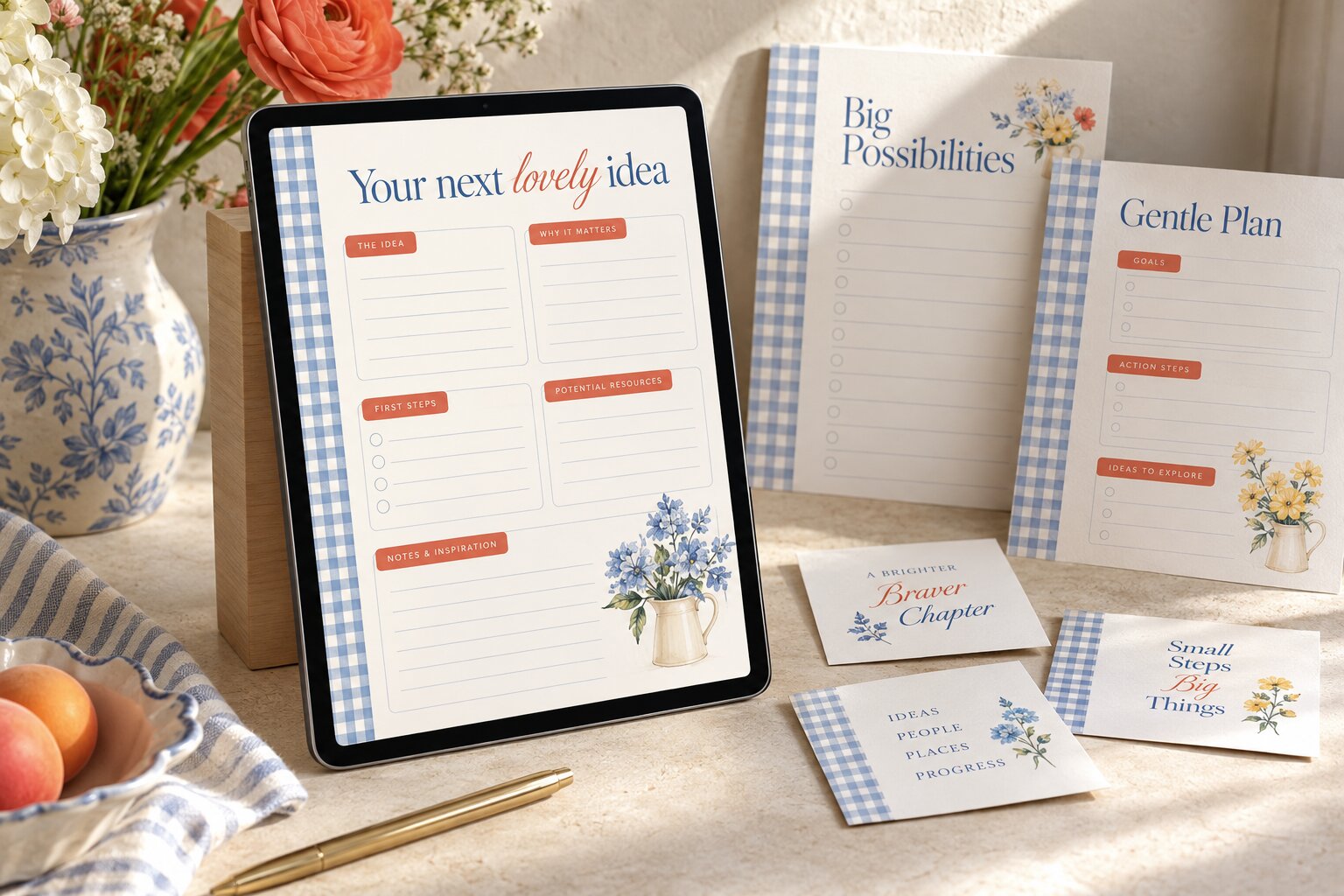
You do not have to print everything. Many digital products work beautifully on a screen, and a tablet can make a planner or template feel like a real notebook.
Opening PDFs
Most tablets and phones can open a PDF in the browser or in a built-in viewer. For the best experience, open the file in a dedicated PDF app so links and form fields work properly.
Writing on a PDF
PDF annotation apps let you write on a page with a stylus or your finger. Import your file into the app, and you can write, highlight, and add pages just as you would on paper.
Keeping devices in sync
Store your purchases in a cloud folder so the same files appear on your computer, tablet, and phone. Just make sure you keep a backup copy in a second place.
Name your files before you import them into an app. A clear name like “weekly-planner-2026” is much easier to find than “download (3).pdf.”
Organizing a growing library
As your collection grows, add the shop or creator’s name and the year to each folder. A little structure now means you will always know where to look, even a year from now.
Frequently asked questions
Looking for something lovely to download?
Browse the shop
Printables, planners, workbooks, and more, ready to download and enjoy.
Once you have a routine, buying and using digital products becomes quick and easy. Download, unzip, organize, back up, and enjoy.

Flaky Buttermilk Biscuits